 Public
  Public
  Public
  Public
  Public
  Public
 01Folders
A folder for every supplier.
Keep what each supplier sends in its own folders, and find any file from the library down to the folder it lives in.
 Assets
 Assets
New folder Upload from URL Upload
Folders
All assets
Demo suppliers
Demo Supplier A
Datasheets
Installation guides
Product images (16)
Supplier files (as received) (2)
Demo Supplier B
Demo Supplier C
Marketing
Showcase
All assets
NameTypeUpdatedPublic state
Demo suppliers Folder 30.09.2026, 21:54 Public
Marketing Folder 30.09.2026, 21:54 Public
Showcase Folder 27.09.2026, 13:10 Public
Assets Supplier files (as received) Folders
All assets
Demo suppliers
Demo Supplier A
Datasheets
Installation guides
Product images (16)
Supplier files (as received) (2)
Demo Supplier B
Demo Supplier C
Marketing
Showcase
All assets›Demo suppliers›Demo Supplier A›Supplier files (as received)
demo-supplier-a-sensors.pdf687 KB · 30.09.2026, 21:55
Public demo-supplier-a-weight-update.csv87 B · 30.09.2026, 21:55
Public demo-supplier-a-sensors.pdf
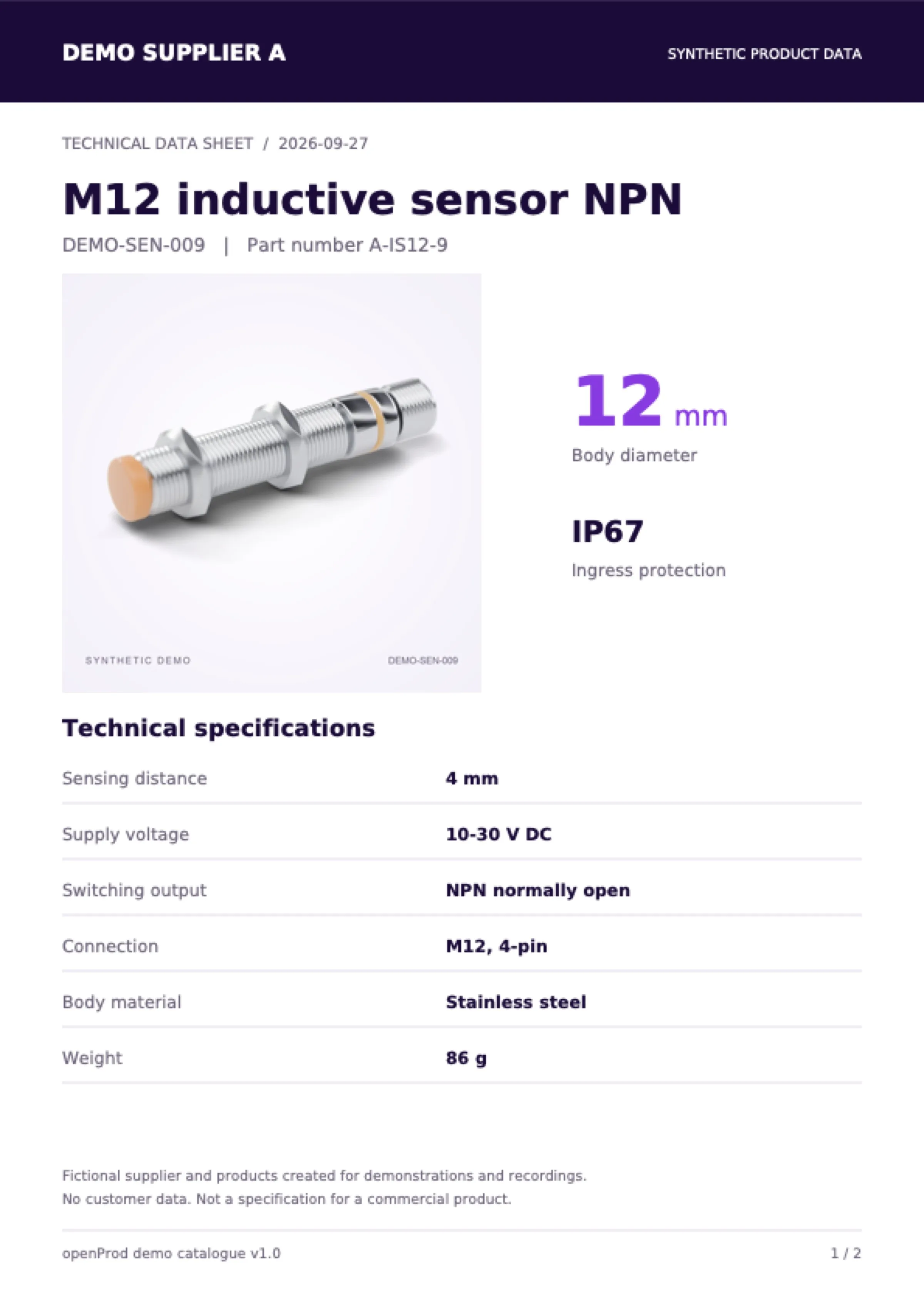
Files as the supplier sent them Each supplier has folders for images, datasheets and the original files. Open any file to preview it.
Demo suppliers›Demo Supplier A
Folders and breadcrumbs
Nest folders as deep as you need. The breadcrumb shows where you are and takes you back up.
New folder
New folder
Add a folder next to the ones you have, for a new supplier or a new kind of file.
Upload
Upload
Upload several files at once from disk. The upload list follows each file until it is done.
Upload from URL
Upload from URL
Paste the link to a file on the web and openProd saves it in the folder you choose.
 Public
  Public
  Public
  Public